|
|
Register your Mobile Tracker Device with MAP using Sample Apps
Create an Asset
In order for you to begin tracking an asset object, you must first create this asset object. To do so:
- Select the Assets option within the toolbar.
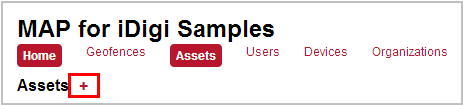
- Click on the Add Asset button (red + next to the "Assets" heading).
The Add Asset dialog will be displayed (as shown below).
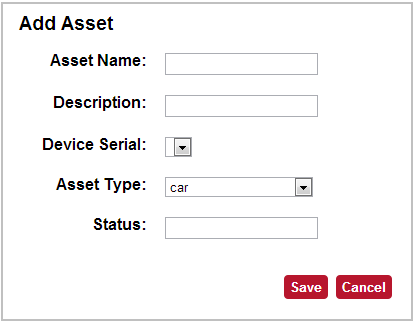
- Configure the following settings within the Add Asset dialog:
- Name - This can be any name of your choosing. It is suggested that you pick something that describes the specific asset being tracked with this mobile tracker device (my car, bus, bike, etc.).
- Description - This can be any description of your choosing. It is suggested that you pick something that describes the asset being tracked (my new car, my shuttle bus, my green bike, etc.).
- Device Serial - Within this drop-down menu the IMEI or MAC address number of your mobile tracker device will be displayed by default.
- Asset Type - Asset type objects simply contain a name and description, allowing you to later sort/group devices based on these types (for example, differentiate cars from trucks, or red from blue).
- Status - Set to 1 (active).
- Click the Save button within the dialog to save your changes (after clicking the save button you will have completed the process of creating an asset object). Your newly created asset object will be displayed (as shown below).
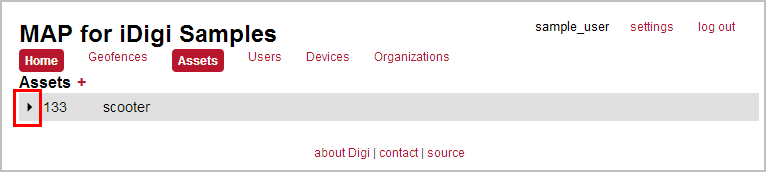
- Click the > symbol (highlighted in the image above) to expand the asset's contents.
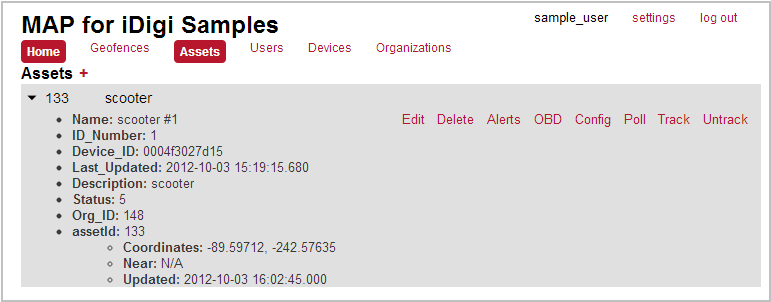
You've completed the process of creating an asset. Proceed to the Create Asset Configuration section where you will create an asset object to be tracked.
Back to Step 3 | Move to Create Asset Configuration
|